

How to Enable Facebook Two-Factor Authentication 2026 is a simple yet extremely important solution to protect your Facebook account from the risk of theft, hacking, or unauthorized access. Many people only realize the importance of this feature after losing their account along with all their photos, messages, groups, and important connections. In this article, Like3s will provide detailed instructions on how to enable Facebook two-factor authentication on both mobile and computer in just a few minutes.

See also: Tips to effectively grow your Facebook page's followers
1. What Is Facebook Two-Factor Authentication? Why Should You Enable It Right Now?
Facebook two-factor authentication — also known as two-step verification or 2FA — is a second layer of protection for your account. In addition to your password, an attacker would also need a confirmation code from your phone to log in.
This means no one can access your account even if they have your password, without the OTP code sent to your phone.
According to a Meta report in 2024, more than 90% of hacked Facebook accounts had not enabled two-factor authentication. The most common method used by attackers is phishing or purchasing passwords from data breaches — and your password alone is enough if you don't have 2FA.
Therefore, enabling Facebook two-factor authentication is the simplest, fastest, and most effective step to protect your Facebook account today.
How Does 2FA Work?
When someone tries to log in to Facebook from an unfamiliar device, the system will request an additional confirmation code. This code changes every 30 seconds and only appears on your phone. Without that code, no one can access the account — not even you if you've left your phone somewhere.
Consequences of Getting Hacked Without 2FA
I've been through this myself, and the list of losses is long: losing all personal photos saved on Facebook, losing admin rights to fanpages, having bad actors use the account to scam friends, and losing all chat history. The recovery process took nearly 2 weeks and not everything was recovered.
2. How to Enable Facebook Two-Factor Authentication on Mobile
This is the method I recommend over the computer, since most people use Facebook on their phones and the steps are faster in the app. The steps are exactly the same on both Android and iPhone (iOS).
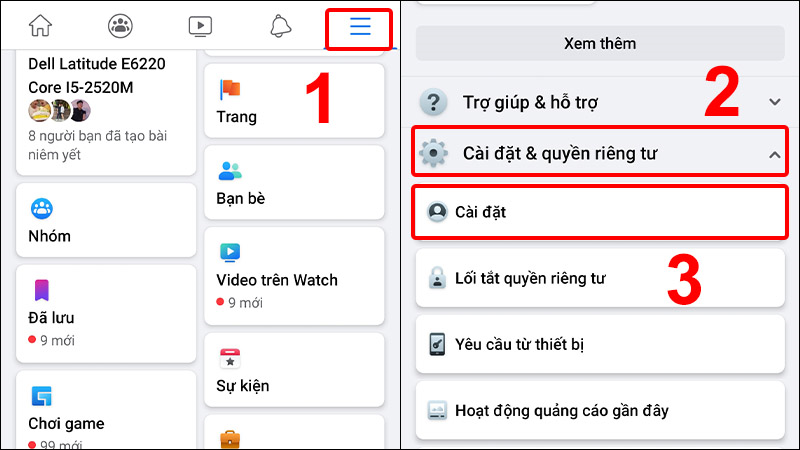
Step 1: Go to Settings & Privacy
Open the Facebook app → tap your profile picture in the bottom right corner (or top right corner depending on the version) → scroll down and select "Settings & Privacy" → select "Settings".
Step 2: Find the Two-Factor Authentication Section
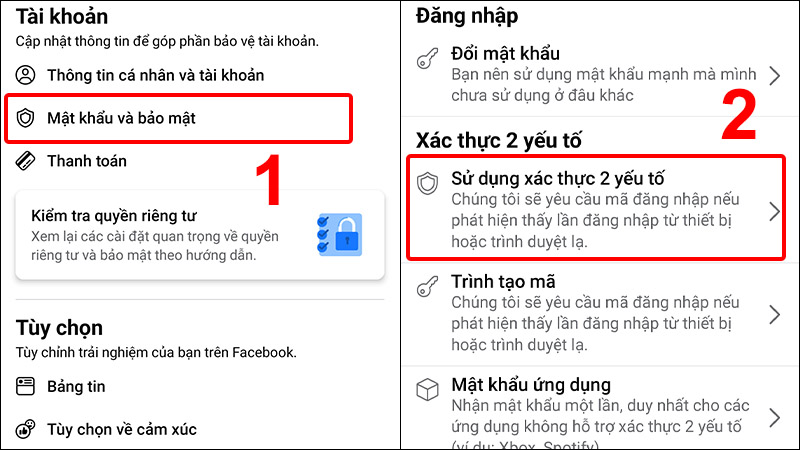
In the Settings page, select "Accounts Center" → "Password and Security" → "Two-Factor Authentication".
If you have multiple linked accounts, select the correct account you want to enable it for before continuing.
Step 3: Choose a Verification Method
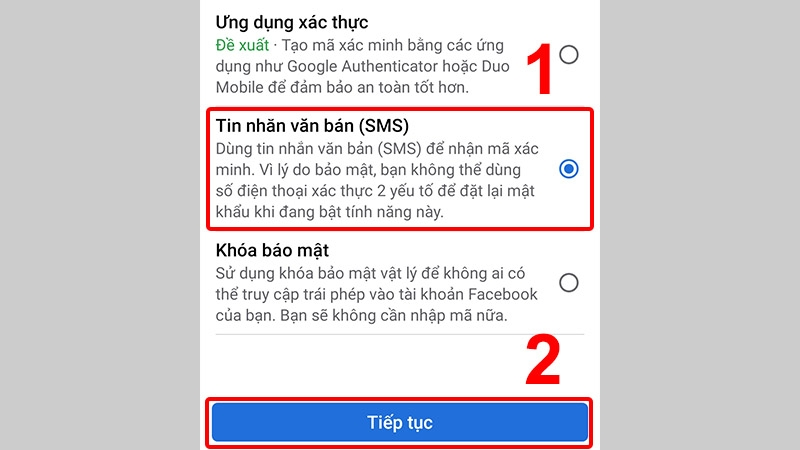
Facebook gives you 3 ways to receive a code:
Authenticator app (Google Authenticator, Authy) — this is the method I recommend
To learn more, you can read: Google Authenticator vs Authy: Which Authenticator App Should You Use?
SMS text message: convenient but less secure (I explain why in the section below)
Physical security key: for those who need maximum security
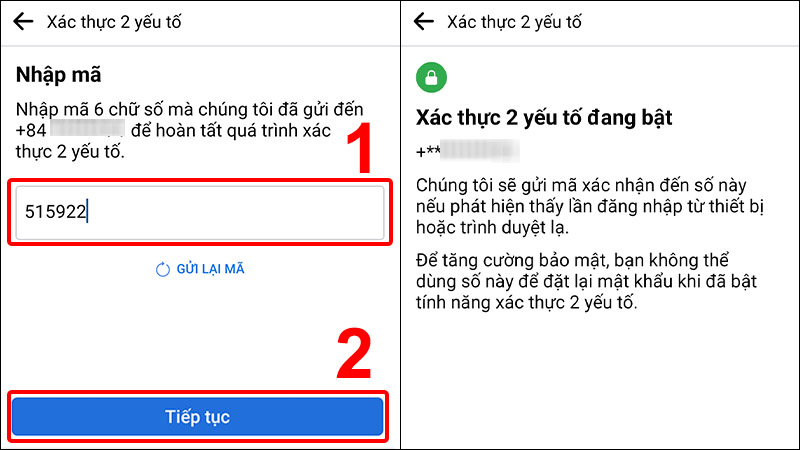
Choose a method → follow the on-screen instructions → enter the confirmation code to complete.
Step 4: Save Your Recovery Codes — Don't Skip This Step
After successfully enabling 2FA, Facebook provides a set of 10 recovery codes — note that each code can only be used once. Use them only when you've lost your phone and need to access your account.
Take a screenshot and save them somewhere safe outside your phone, print them out, store them in a backup email, or write them down in a notebook. If you lose your phone and don't have these codes, the account recovery process can take 1–7 days.
3. How to Enable Facebook Two-Factor Authentication on Computer
If you primarily use Facebook on a computer, here's how to enable it through a browser. The steps are the same on Chrome, Cốc Cốc, and Edge.
Step 1: Go to Accounts Center
Log in to Facebook → click your profile picture in the top right corner → "Settings & Privacy" → "Settings" → in the left column, select "Accounts Center".
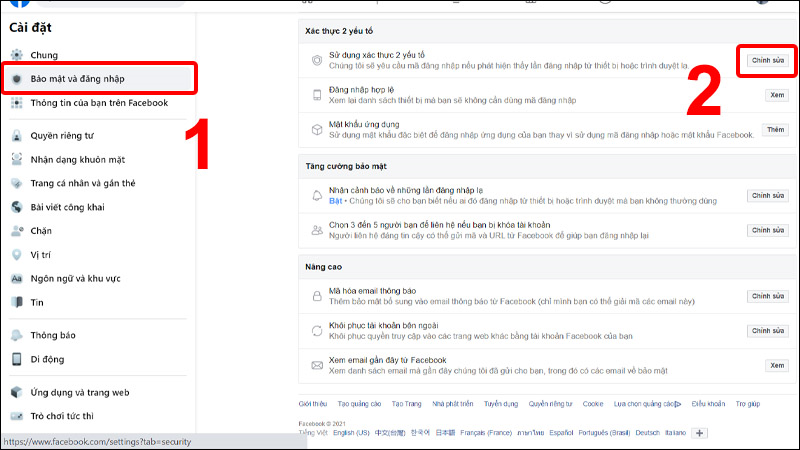
Step 2: Enable Two-Factor Authentication
In Accounts Center → "Password and Security" → "Two-Factor Authentication" → select your account → click "Enable".
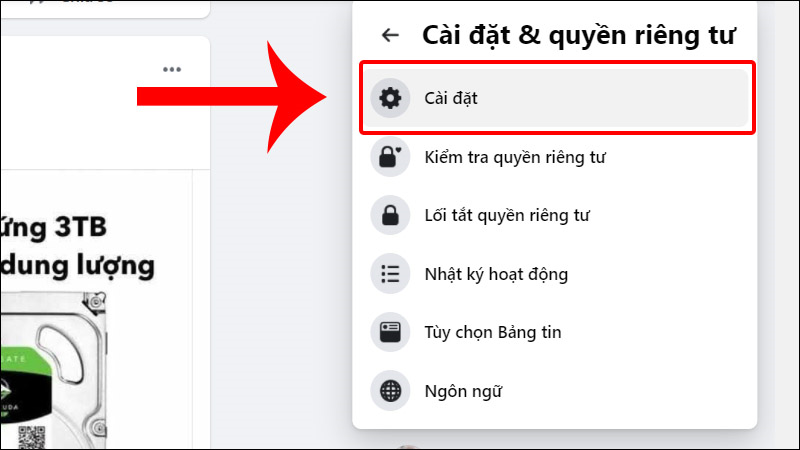
From here, the interface is identical to the mobile version — choose a method → enter the confirmation code → save your recovery codes. Done.
4. Comparing the 3 Verification Methods: Which One Should You Choose?
I've tried all 3 methods while testing security across multiple accounts — here is my real-world assessment:
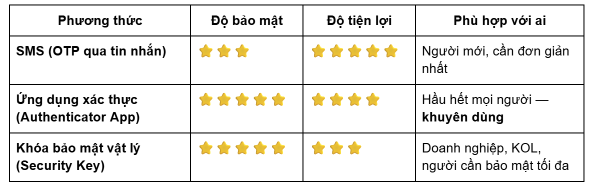
Why don't I recommend SMS?
SIM cards can be attacked via SIM Swap, where an attacker contacts your carrier, impersonates you, and requests your number be transferred to their new SIM. While not common, this risk is real and is growing.
I recommend Google Authenticator or Authy, both are free and take only 2 minutes to set up. A key advantage of Authy is its cloud backup feature for your codes, which is very convenient when switching to a new phone without worrying about losing your authentication codes.
5. Common Errors When Enabling 2FA and How to Fix Them
These are the issues I encounter most often when helping users enable 2FA, along with solutions for each.
Not Receiving the SMS Code
First, double-check your phone number — Vietnamese numbers need to be entered as +84 instead of 0. If it's correct and you still don't receive the code, try toggling wifi/data off and on, wait 1–2 minutes, then tap "Resend Code". If that still doesn't work, switch to using an Authenticator App (one of the reasons I recommend this method for enabling two-factor authentication on your Facebook account). This method doesn't depend on mobile signal — it's more stable and more secure.
The Verification Code Says It's Invalid
This is a common issue when using an Authenticator App, and the cause is usually your phone's clock being out of sync. 2FA codes are generated based on real time in 30-second cycles — if your clock is off by more than 1 minute, the code won't match. The simple fix is: go to Phone Settings → Date & Time → enable "Set Automatically" → try again.
Lost Your Phone — How Do You Access Your Account?
If you saved your recovery codes: use one of the 10 codes to log in (each code can only be used once). If you don't have recovery codes, the process is a bit more involved: go to the Facebook login page, then click "Need more help?" and follow Facebook's identity recovery instructions. This process typically requires identity verification and can take 1–7 days. A very important reminder: save your recovery codes right after enabling 2FA — don't wait until you need them to look for them.
Account Keeps Asking for a Code Every Time You Log In
This usually happens when you log in from a new device or an incognito browser. If you want fewer interruptions, check "Trust this device" after entering the code — Facebook will then not ask again on that device for 30 days.
6. Frequently Asked Questions About Facebook Two-Factor Authentication
Will enabling 2FA log me out of devices I'm currently using?
Definitely not. Devices you're currently logged in on will not be affected at all. Only when logging in for the first time from a new device or a different browser will you need to enter a 2FA code. So you can enable it without worrying about interrupting your current work.
Can I enable 2FA for secondary accounts?
Yes, each Facebook account can have 2FA enabled separately. I recommend enabling it for all accounts, including secondary ones, because bad actors often use secondary accounts for impersonation, spamming, or as a stepping stone to attack the main account.
Is "two-layer security" different from "two-step verification"?
These are two names for the same feature. Depending on the version of Facebook and the device, you may see one or the other term on the interface. Its full technical name is "Two-Factor Authentication" (2FA).
What if I want to change my phone number?
First, go to Settings, access Two-Factor Authentication, and update to your new number before discarding the old SIM, as it will require an OTP from the old SIM. If you've already discarded the old SIM without updating, use a recovery code or your Authenticator App (if installed) to log in and update your new number.
Does enabling 2FA affect logging into other apps using Facebook?
No. Third-party apps that have already been authorized (such as Spotify or Tinder logging in with Facebook) will continue to work normally. Only when logging in fresh to Facebook or using a third-party app for the first time will a 2FA code be required.
Conclusion
It only takes 3 minutes to enable Facebook two-factor authentication, but in return you get long-term peace of mind for your account. Don't wait until you get hacked to regret not doing it sooner. We hope that through this guide from Like3s, you now know how to enable two-factor authentication on Facebook!
See also:
How to Add Contact Information on Facebook Quickly and Accurately.
How to Enable Facebook Monetization 2026 — Latest Update: Requirements and Detailed Instructions
The Like3s content team — sharing algorithm insights, case studies and channel-building strategy.