

Creating a passkey for your Facebook account is a topic many people are curious about, as this feature makes the login process faster, more convenient, and more secure. Instead of memorizing a complex password or entering an OTP every time you log in, you can use Face ID, a fingerprint, or your screen lock PIN on your device. In this article, Like3s will provide a detailed guide on how to create a Facebook passkey on both iPhone and Android, helping you easily set up and use this feature.

See also: Key factors that help your Facebook videos attract more viewers.
What Is a Facebook Passkey?
A passkey is a new login standard developed by the FIDO Alliance. Instead of entering a password, you verify your identity using your own device — including your fingerprint, Face ID, or screen lock PIN.
It may sound similar to simply unlocking your phone, and in a way, it is. The difference lies behind the scenes: Facebook generates a pair of encryption keys — a public key stored on Facebook's servers and a private key stored on your device that no one can access. When you log in, these two keys "handshake" to verify your identity, and no password is ever transmitted over the network.
This means that even if Facebook suffers a data breach, hackers cannot obtain anything, because your private key never leaves your device.
Meta began rolling out passkeys for Facebook in 2023, and by 2025, the feature works well on both iOS and Android. However, browser-based login on desktop is not yet supported, so you will need to follow these steps on your phone.
How to Create a Passkey on Facebook
Before getting started, you need to meet 2 requirements: the Facebook app must be updated to the latest version, and your phone must have fingerprint or Face ID enabled. Here are the steps:
Step 1: Go to Accounts Center
Open the Facebook app → tap the three-line menu icon (top right of the screen) → scroll down and select Settings & Privacy → Settings.
On the Settings page, find the Accounts Center section → tap See more in Accounts Center.
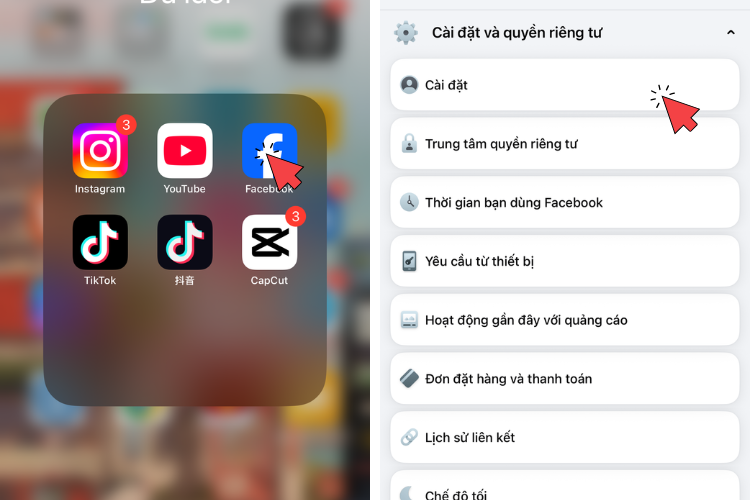
Step 2: Navigate to Passkeys
In Accounts Center, select Password and Security → tap Passkeys.
Here, Facebook displays a list of passkeys you have already created (if any) and a Create Passkey button.
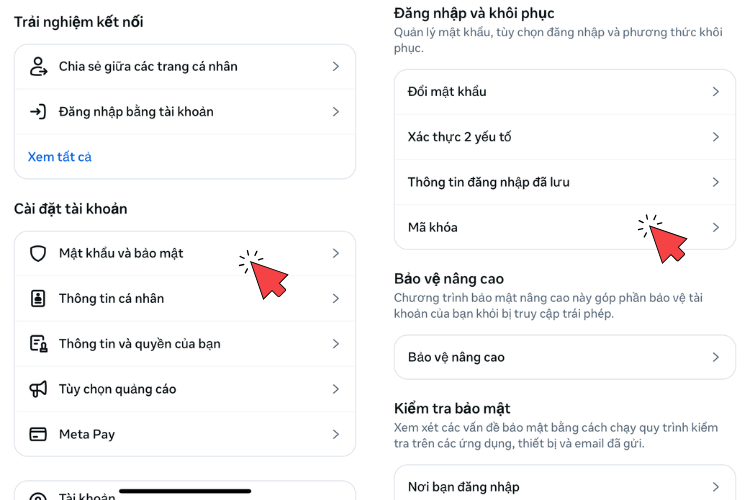
Step 3: Confirm Your Current Password
Tap Create Passkey → Facebook will ask you to enter your account password to verify that you are the account owner. Enter it and tap Continue.
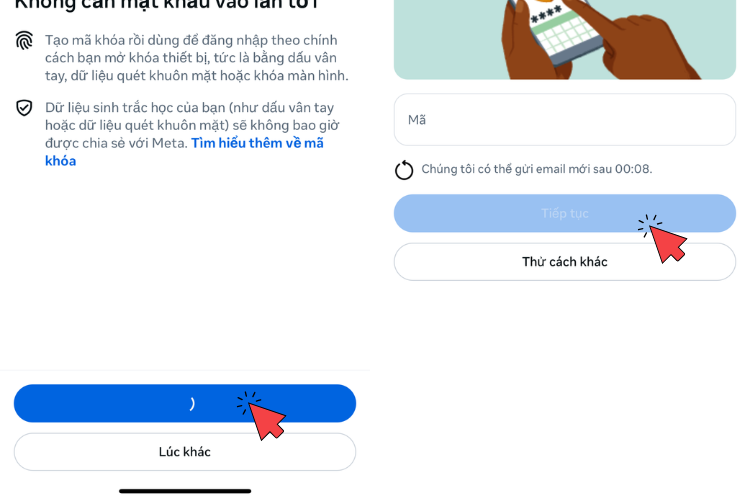
Step 4: Authenticate with Biometrics
Your phone will display a popup asking you to authenticate with your fingerprint, Face ID, or PIN — depending on your device. Follow the on-screen instructions.
On iPhone: iOS will ask if you want to save the passkey to iCloud Keychain. It is recommended to select Save — this way, the passkey will automatically sync across all your Apple devices.
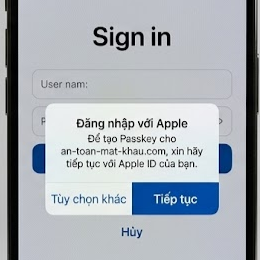
On Android: Google will ask to save to Google Password Manager. Similarly, it is recommended to agree so you can use the passkey across multiple Android devices.
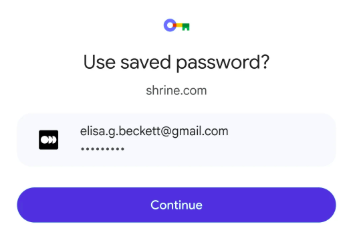
Step 5: Done
Once Facebook confirms that your passkey has been successfully created, the next time you log in, you only need to touch the fingerprint sensor or look at the camera.
Where to Save Your Passkey — iCloud or Google Password Manager?
This is a question many people overlook, but it is quite important.
iCloud Keychain (iPhone/iPad/Mac): The passkey automatically syncs across all Apple devices signed in with the same Apple ID. If you only use the Apple ecosystem, this is the best option — seamless and requires no extra steps.
Google Password Manager (Android): Similarly, it syncs across Android devices on the same Google account. If you use both iPhone and Android, you can install Google Password Manager on iOS to share one set of passkeys across both platforms.
Third-party password manager apps (Bitwarden, 1Password, etc.): These apps are also beginning to support passkey storage. If you are already using Bitwarden, you can save your passkey there for centralized management — both traditional passwords and passkeys in one place.
It is recommended to save your passkey in at least 2 locations if possible, so that if you lose your phone, you still have a way to log in from another device.
How to Remove a Facebook Passkey When You No Longer Need It
If you want to remove a passkey — for example, when selling an old phone — here is how:
Go to Accounts Center → Password and Security → Passkeys → tap Remove next to the passkey you want to delete → select Remove from Accounts Center to confirm.

Facebook will ask you to re-enter your password and an SMS verification code to complete the process. Note that once deleted, this action cannot be undone, and you will need to create a new passkey from scratch if you want to use this feature again in the future.
Conclusion
Creating a passkey on Facebook will help you log in faster and far more securely than using a traditional password. If your phone already supports fingerprint or Face ID, try this feature today. If you have any questions during the passkey setup process, feel free to leave a comment for Like3s.
See also:
How to Link Facebook with Shopee – Latest Guide 2026
How to Apply for a Blue Verified Badge on Facebook – Latest Guide 2026
How to Enable Facebook Two-Factor Authentication 2026: Step-by-Step Guide for All Devices
The Like3s content team — sharing algorithm insights, case studies and channel-building strategy.